
Meeting Transcription
Real-time meeting transcription and translation for calls with someone who speaks another language. Join the call in Chrome, click the extension icon on that tab, and what they say appears in your language as they speak, about a second behind. The language barrier stops slowing the conversation down.
Works in the browser version of  Google Meet
  Zoom
Zoom  Microsoft Teams
The Zoom and Microsoft Teams desktop apps aren't covered, so open the meeting link in Chrome.
- Real time. You read each line during the call, not after it.
- On your computer. It can run entirely on your machine, with no waiting on a server.
- Any language pair. People speak one of 33 languages, you read any of 39.
Browser version: Audio Translator on the Chrome Web Store. For your phone: Android app on Google Play.
[12:41] Die Preisseite zeigt noch die alten Tarife.
[12:41] The pricing page still shows the old plans.
[12:47] Das ändere ich heute, das sind fünf Minuten.
[12:47] I'll change that today, it's five minutes.
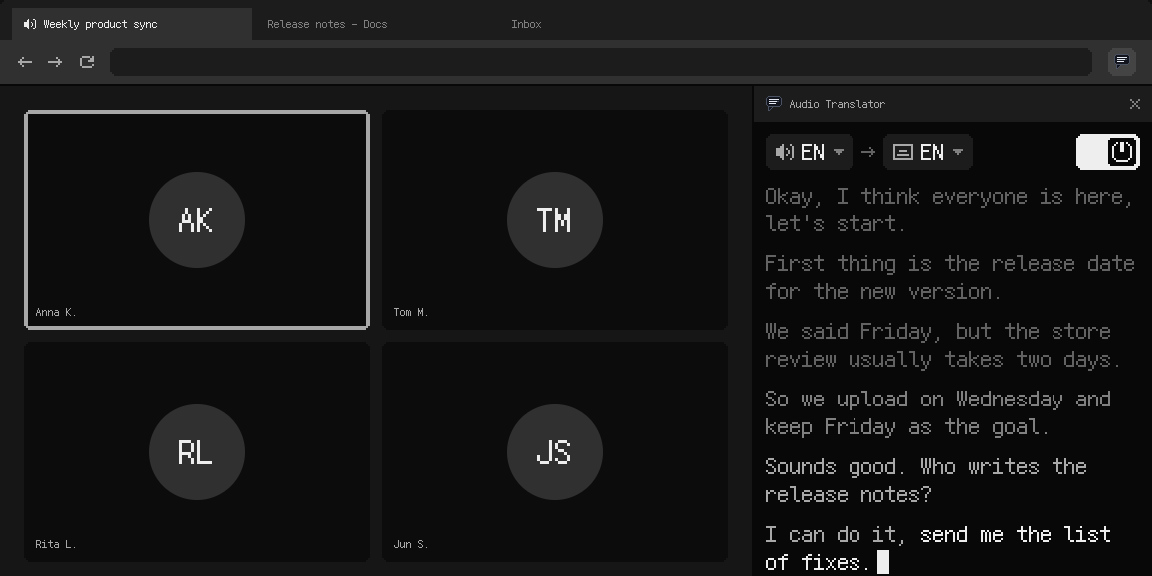
Real-time translation for multilingual meetings
Maybe the weekly sync is with the Berlin office and half of it slides into German. Or a client's English runs out halfway through the demo and they finish in Japanese. You follow most of it, then miss the one sentence that mattered.
With real-time translation you don't wait for a summary after the call. You read the answer as it's given and can reply straight away, instead of asking them to say it again in English. If the other person installs the extension too, you each read the other in your own language.
Set the language people speak in the call, or leave it on Auto, and pick the language you want to read. The translation runs as subtitles over the call page and as a growing transcript in the side panel, so if you look away for a moment you can scroll back and catch up.
If you understand some of the language, turn on Original text in the settings. The source line then sits above each translation, so you see what was said next to what it became.
Whose voices end up in the meeting transcript
It listens to the call tab, which is everyone else in the meeting. Your microphone stays out of it, so the text is the other side of the conversation: the people you joined the call to understand.
Nothing joins the call either. There's no extra participant in the list and no message in the meeting chat. It's a tool on your side of the screen.
It can run entirely on your computer
Most real-time translation services work over the internet. The call audio goes to their servers, the text comes back, and every line waits for that round trip.
Audio Translator can do all of it on your own computer. With no server in the middle there's less between the words and the subtitles, so the translation keeps pace with the speaker even when the connection is busy carrying the call itself. And what's said in the meeting doesn't have to leave your machine.
How to transcribe a meeting in Google Meet, Zoom or Microsoft Teams
The extension works with the browser tab where you click its icon, so the call needs to be open in the browser. If the call runs in the Zoom or Microsoft Teams desktop app, the extension doesn't hear it, even on the same computer.
Google Meet transcription and translation
Google Meet already runs in the browser, so there's nothing to set up. Join the call, click the Audio Translator icon in the toolbar and pick your languages. Lines start coming in about a second after someone speaks. You don't need to be the host.
Zoom transcription and translation
When you open a meeting link, Zoom offers its app. Close that prompt and look at the bottom of the page for "Join from your browser". Once you're in the call in the browser, click the extension icon on that tab.
Microsoft Teams transcription and translation
Open the meeting link in the browser and choose "Continue on this browser" when Microsoft Teams suggests its app. Join, then click the extension icon.
Transcribe a recorded meeting
A recording that plays in a browser tab works the same way: a file in Google Drive or Dropbox, the Zoom cloud recordings page, your company's video portal. Press play and click the icon. It goes at the speed of playback, so an hour of recording takes an hour. For videos, podcasts and live streams outside work, see the audio translator page.
Built-in captions in Google Meet, Zoom and Microsoft Teams vs. this extension
Google Meet, Zoom and Microsoft Teams have their own captions and transcripts. Translated captions there depend on the plan, and the transcript is usually started by the host. As a guest on someone else's call, you often can't turn either on.
| Translated captions | Who starts the transcript | |
|---|---|---|
| Google Meet | Some Workspace plans | Host or co-host |
| Zoom | Some paid plans | Host |
| Microsoft Teams | Some paid plans | Organizer |
| This extension | 39 languages | You, as a guest too |
When everyone in the call speaks the same language, you can also use it as a plain meeting transcript. Set both languages to the language of the meeting and the text comes out untranslated.
Save the meeting transcript with timestamps
Turn on Autosave in the side panel once. After that every session is written to Downloads/audio-translator as its own .txt file, named by date and time. Each line starts with a [mm:ss] timestamp from the start of the call, so you can find the moment someone agreed to a deadline.
It's plain text, so it goes anywhere. Send it to whoever missed the call, or paste it into the AI chat you already use and ask for minutes and action items. If you'd rather not keep files, Copy transcript puts the whole call on the clipboard.
How accurate it is
Each version is checked on the same English video that also has subtitles typed by a person. About 95 words in 100 match them.  YouTube's automatic captions get about 96 on that video. That figure is for English speech. Other languages are checked on their own videos.
Tips before the call
- Click the icon and pick your languages a few minutes before the meeting. Whatever was said before you click isn't in the text, and the first time you use a pair its translation pack downloads.
- Before you send the file around, skim it for names and figures.
- Pin the call tab so you don't close it by accident. Closing it ends the transcript.
Tell people before you transcribe
The extension doesn't announce itself, so that part is up to you. In many places it isn't only polite. Some US states, including California, require everyone on a call to agree before it's recorded, and in the EU a transcript of a conversation counts as personal data. Your company may have rules about meeting transcription too.
A short "I'm keeping a transcript for my notes, is that okay?" at the start usually covers it. This isn't legal advice; for a sensitive meeting, ask whoever handles that at your company.
Browser and Android
The main version is the extension for Chrome and other Chromium-based browsers, on the Chrome Web Store. That's the one for meetings on your computer. There's also an Android app on Google Play that shows subtitles in a small window on top of other apps.
Who makes it
Audio Translator is made by an independent developer, not a meeting software company. This page describes version 0.8.15 from October 2026. Questions and bug reports go through the contact form, and reviews are on the Chrome Web Store.
Meeting transcription FAQ
Can it translate a meeting in real time?
Yes. Each line shows up in your language about a second after it's said, as subtitles over the call and in the side panel.
Can I get meeting notes or a summary?
You get the full text with [mm:ss] timestamps. Paste it into the AI chat you already use and ask for minutes and action items.
Will my own voice be in the transcript?
No. It follows the call tab, so you get what the other participants say. Your microphone stays out of it.
Does the call audio go to a server?
It doesn't have to. The extension can run entirely on your computer.
Will other people in the call see it?
No. Nothing joins the meeting and nothing is posted in the chat.
Can I get a transcript without translation?
Yes. Set both languages to the language of the meeting.
Can I switch to another tab during the call?
Yes. The transcript keeps going for the tab where you clicked the icon, and the side panel follows you.
What happens if the call tab closes?
The session ends. With Autosave on, everything up to that point is already in the file.
Does it work with headphones?
Yes. It takes the sound from the tab, not from your speakers.
Can I make the subtitles bigger?
Yes. There are 16 sizes, up to 96 px.
Which languages can people speak in the call?
33 languages: English, Arabic, Bulgarian, Chinese, Croatian, Czech, Danish, Dutch, Finnish, French, German, Greek, Hebrew, Hindi, Hungarian, Italian, Japanese, Korean, Lithuanian, Norwegian (Bokmål and Nynorsk), Polish, Portuguese, Romanian, Russian, Slovak, Slovenian, Spanish, Swedish, Thai, Turkish, Ukrainian, Vietnamese. The translation can go into any of 39 languages.
Does it work for calls in the Zoom or Microsoft Teams desktop app?
No, only browser tabs. Open the meeting link in Chrome and choose "Join from your browser" in Zoom or "Continue on this browser" in Microsoft Teams. You're in the same call, and the extension can hear it.
Works in Chrome and other Chromium-based browsers on Windows, Mac, Linux and ChromeOS.
Add to ChromeThe browser extension is the main version. On Android: Audio Translator on Google Play.